I’m an Attendee, how can I create and manage meetings in the Event App?
The meeting booking feature enables attendees to schedule meetings seamlessly throughout the event. With the Mobile Event App, they can book meetings, manage their schedule, and set their availability in one convenient platform.
Contents
- 1 (A). Create Meetings as an Attendee
- 1 (B). Managing Your Meetings as an Attendee
- Frequently Asked Questions
1 (A). Create Meetings as an Attendee
-
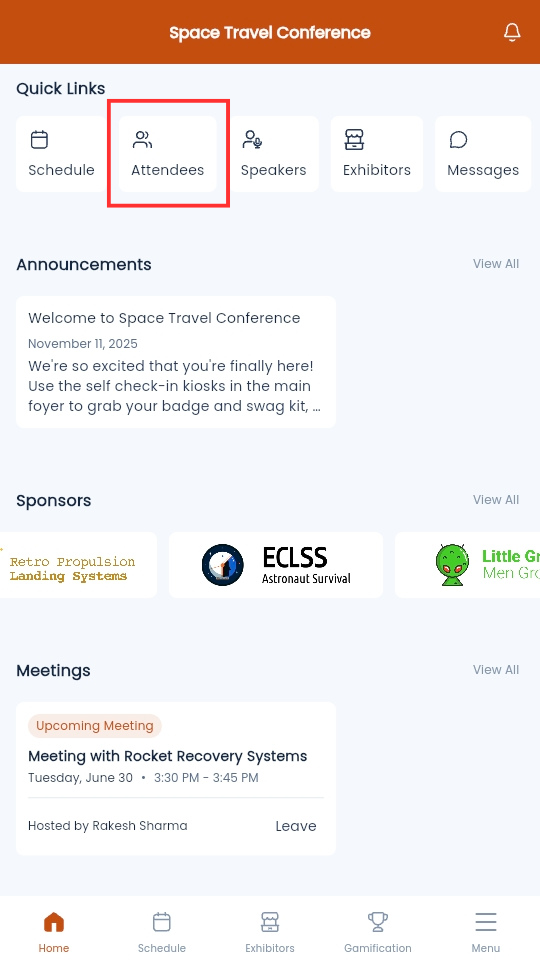
From the Mobile Event App, select Attendees
-
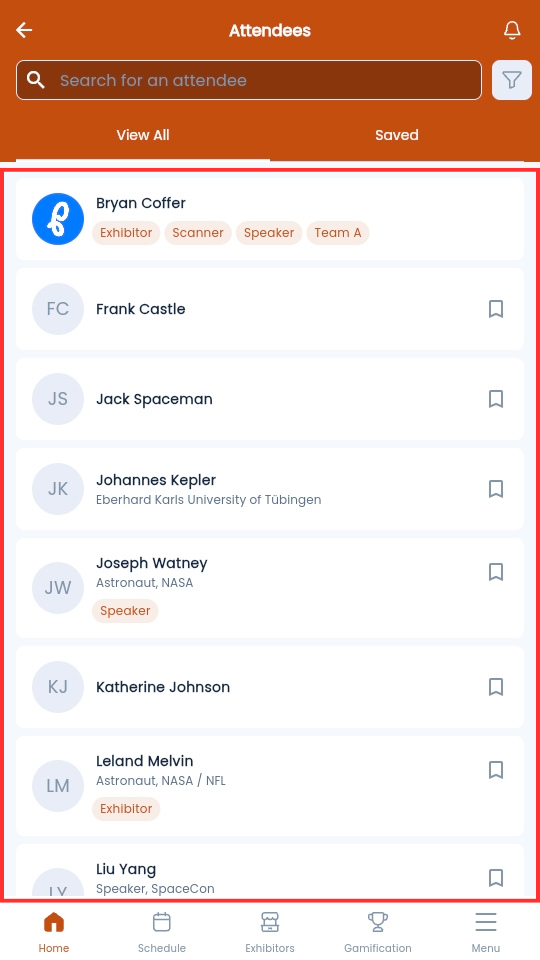
Select an attendee you would like to make a meeting with from the list
-
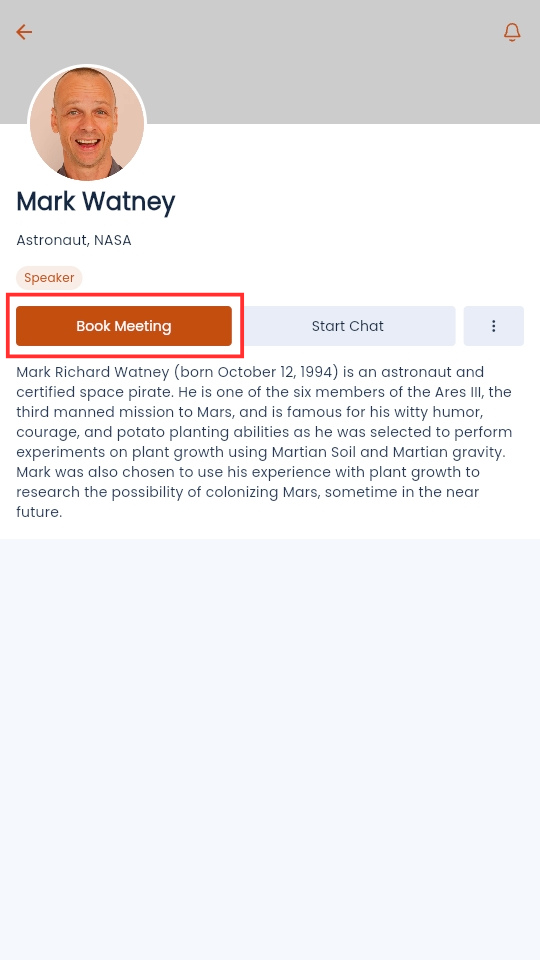
In the attendee profile page, select Book Meeting
- Under the Meeting Title field, enter the title of the meeting
- Under the Date & Time field, enter the date and time for the meeting
- Under the Guests field, select Add Guest to invite additional attendees to the meeting
- Under the Location field, select the location you wish to host the meeting at
- Under the Description field, enter any additional information you may wish for attendees to know
-
Select Create Meeting
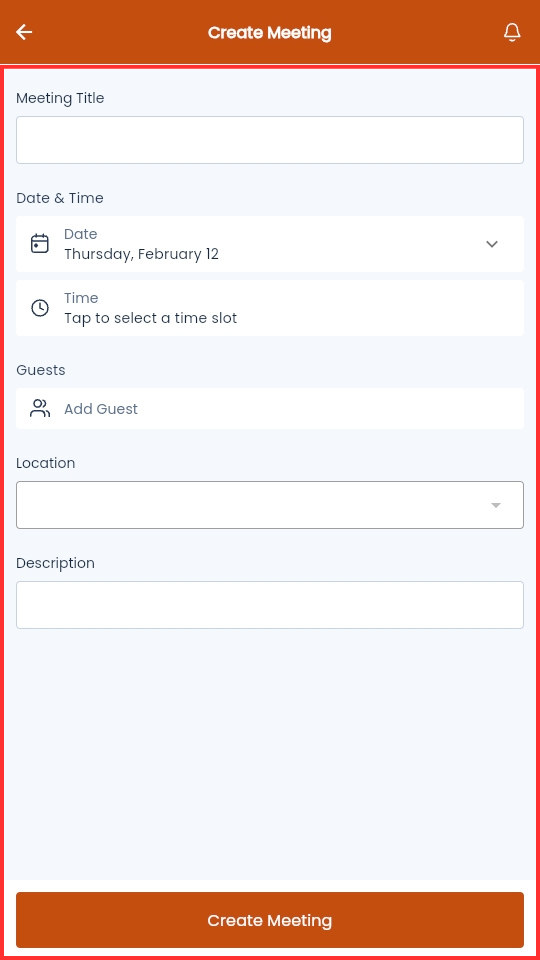
Once the attendee submits a request, the invited guest will have the meeting appear in their Meetings page. Attendees cannot book a meeting if they already have another meeting scheduled for the same time. The main benefit of using the Attendee’s page is the capability of filtering based on tags.
Alternatively, attendees can book meetings from the Meeting page on the Event App.
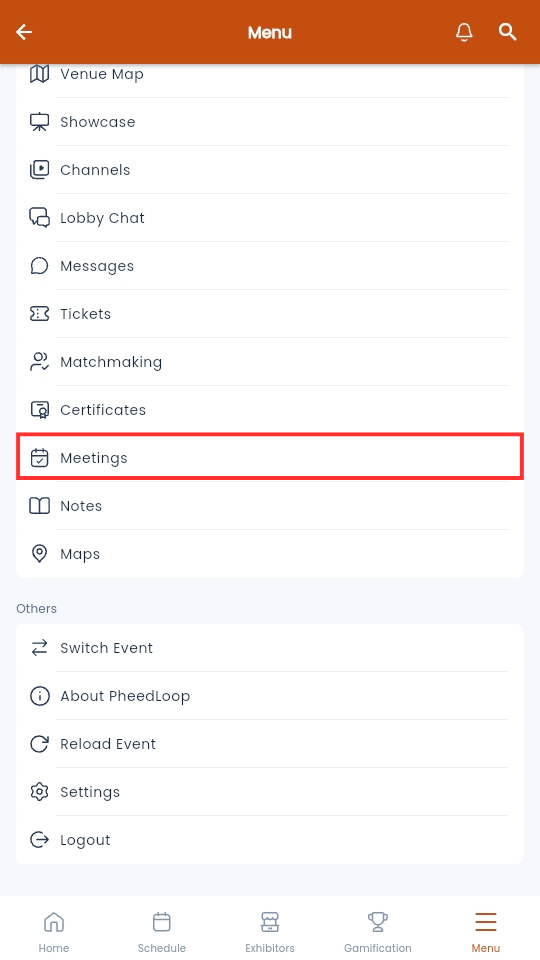
- From the Mobile Event App, navigate to Menu
-
Select Meetings
-
Select the plus icon (+) to create a new meeting
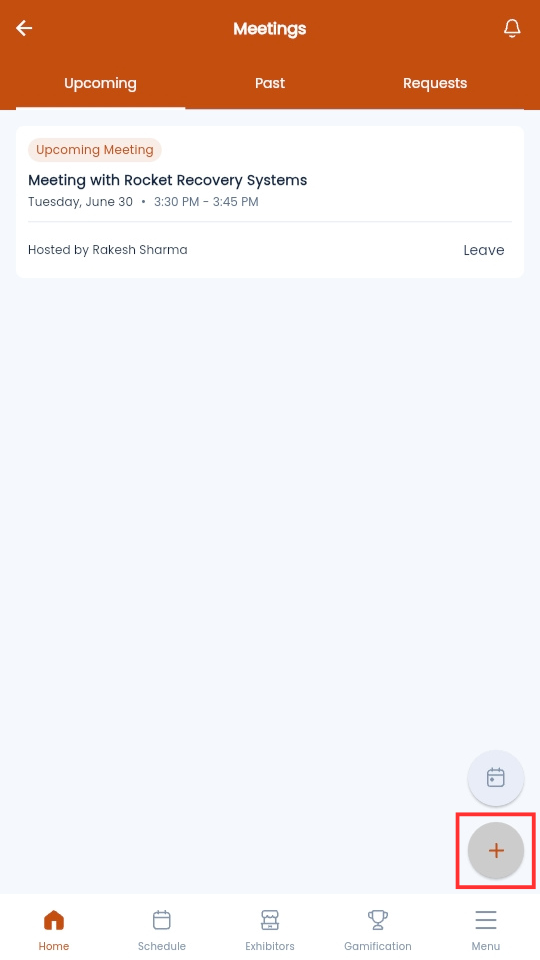
- Create the meeting by following the same instructions as noted above
Booking Meetings with Exhibitors
Attendees can also book meetings with exhibitors who have the Advanced Exhibitor Upgrade. Attendees will not be able to book meetings with exhibitors who do not have the upgrade.
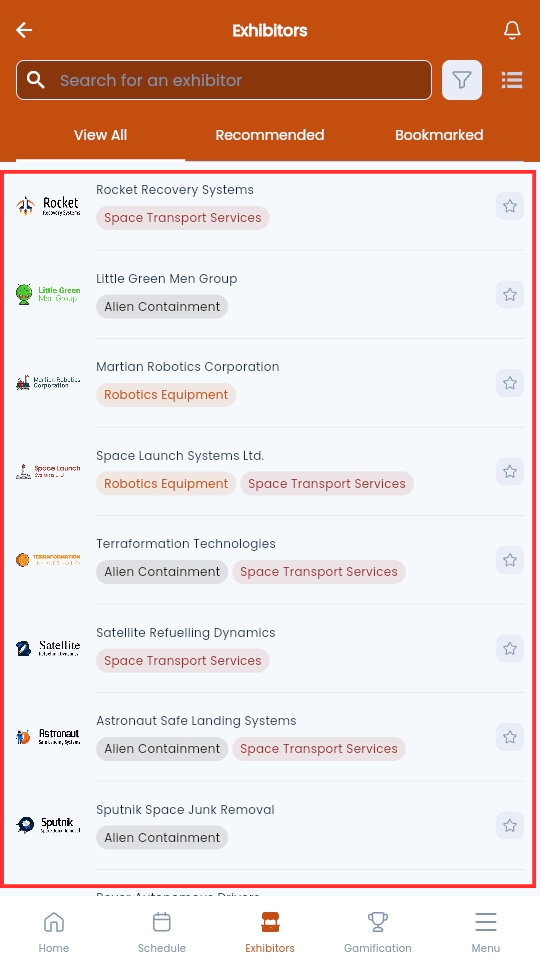
- From the Mobile Event App, navigate to Exhibitors
-
Select the Exhibitor you wish to meet with
-
Select Book Meeting
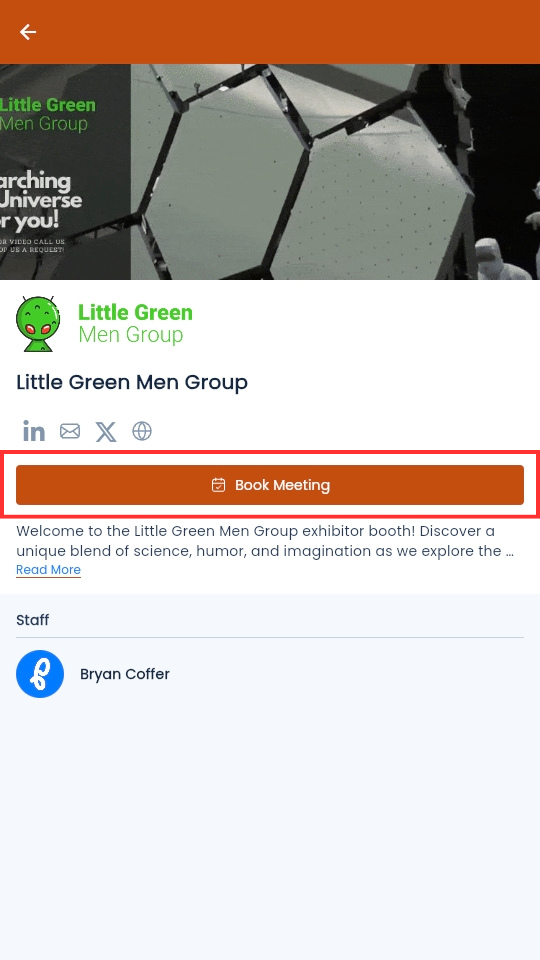
- Create the meeting by following the same instructions as noted above
1 (B). Managing Your Meetings as an Attendee
As an attendee, you can access your meetings from the Meetings widget or the Meetings page (via Menu).

To access the Meetings page:
- From the Mobile Event App, navigate to Menu
-
Select Meetings
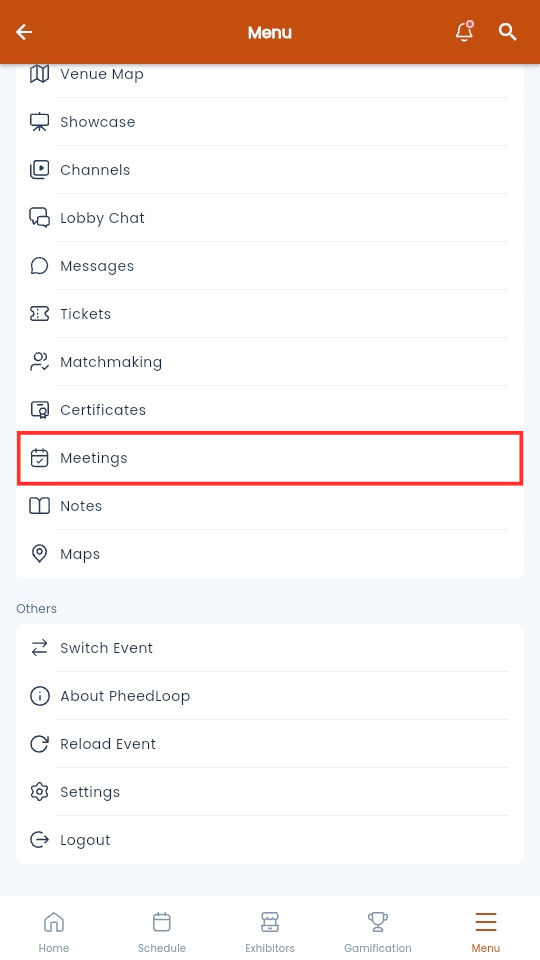
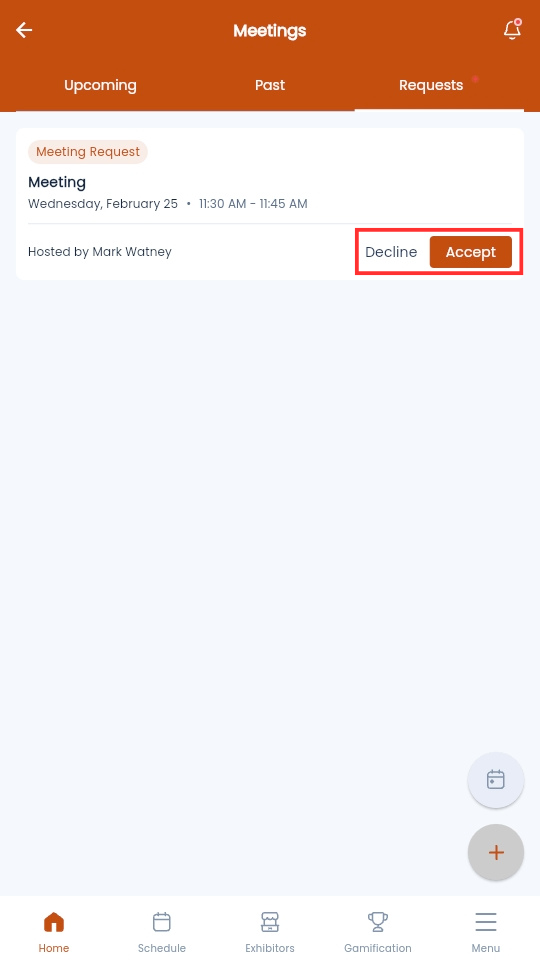
You will now be taken to the Meetings page, where you can view both past and upcoming meetings. The Requests tab will display all meeting requests for your account. Select Accept or Deny to confirm your meeting status.
If you have accepted a meeting but cannot attend, select Leave to withdraw.
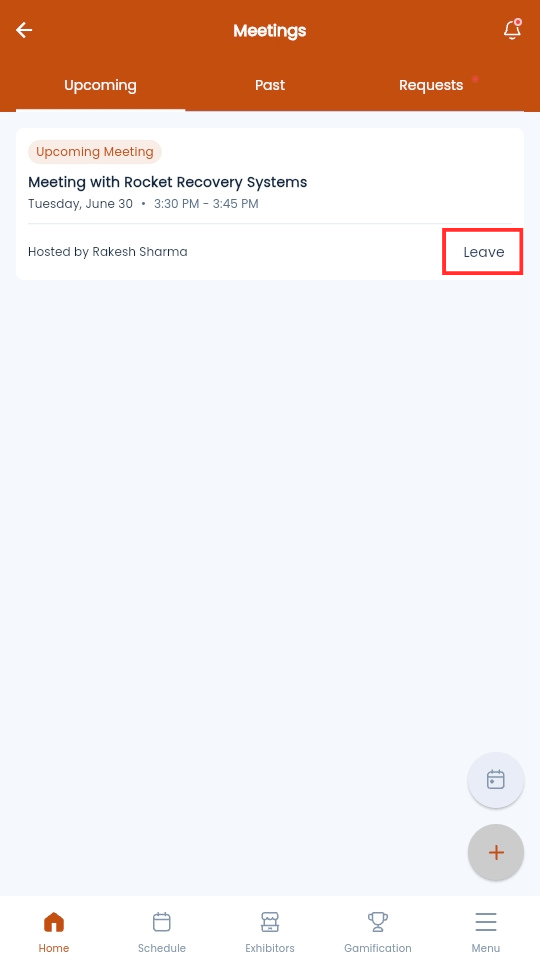
If you are the host of this meeting, the button will be called Cancel.
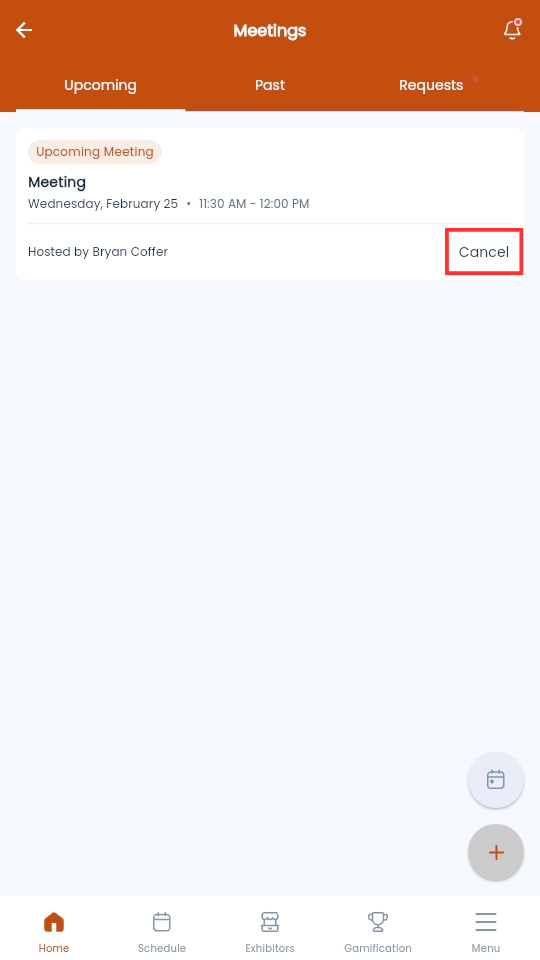
Please note that canceling a meeting will delete the meeting for all guests. Hosts will need to recreate the meeting if they cancel the meeting.
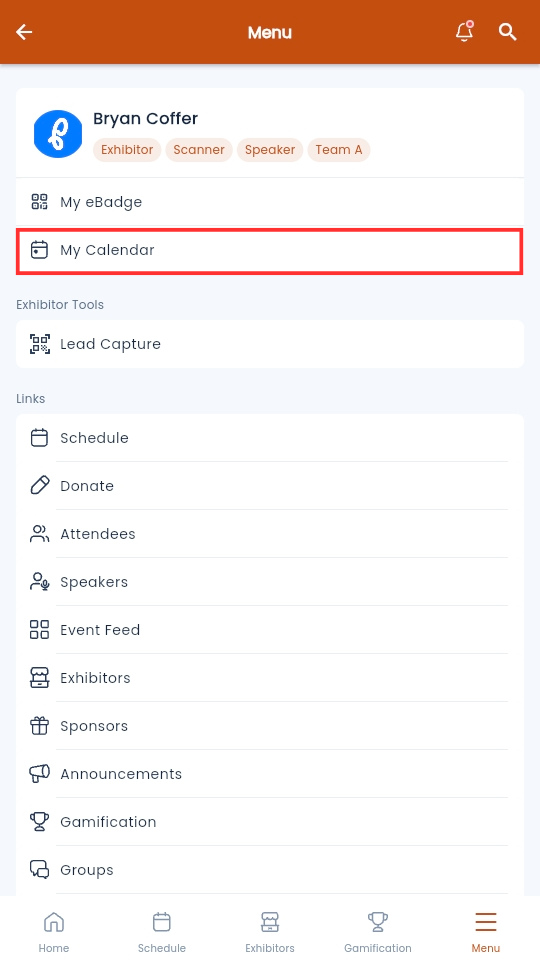
Quick Tip - You can also find your scheduled meetings in the My Calendar page.