I'm an Exhibitor, How do I capture Leads in the PheedLoop Go! Event App
PheedLoop Go! provides a streamlined solution for capturing and managing leads at events, allowing staff and exhibitors to scan attendee badges and efficiently collect contact information. This guide will walk you through the process of using PheedLoop Go! for Lead Retrieval, including setting up the app, scanning badges, managing captured leads, and exporting data for follow-up. By leveraging PheedLoop Go!, event teams can maximize networking opportunities, reduce manual data entry, and ensure that no potential connection is missed.
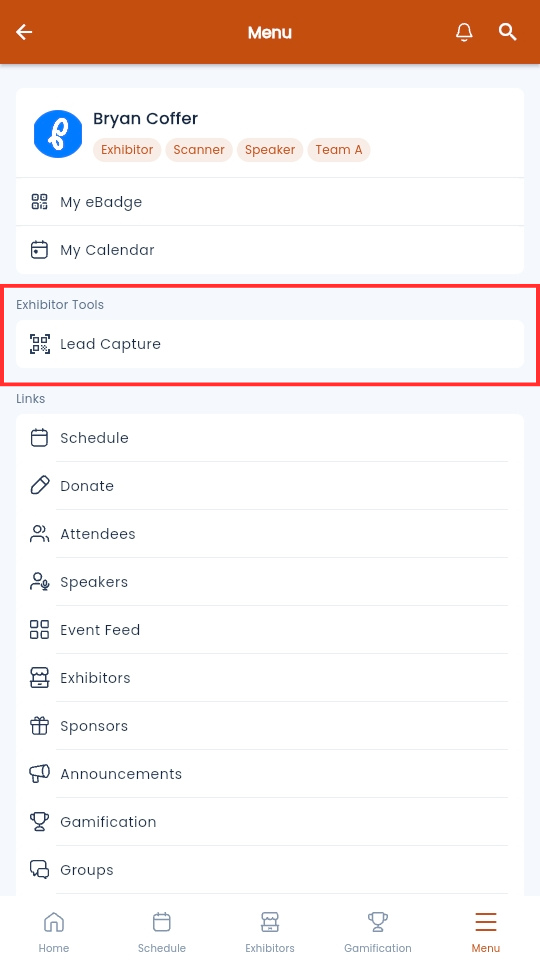
- From the Mobile Event App, navigate to Menu on the bottom right
-
Under Exhibitor Tools, select Lead Capture
-
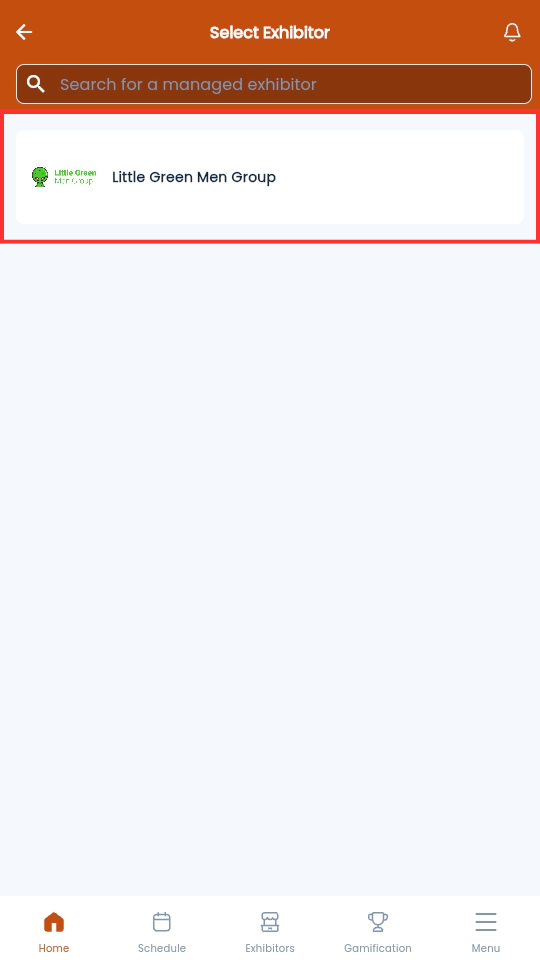
Select the Exhibitor you are scanning for
-
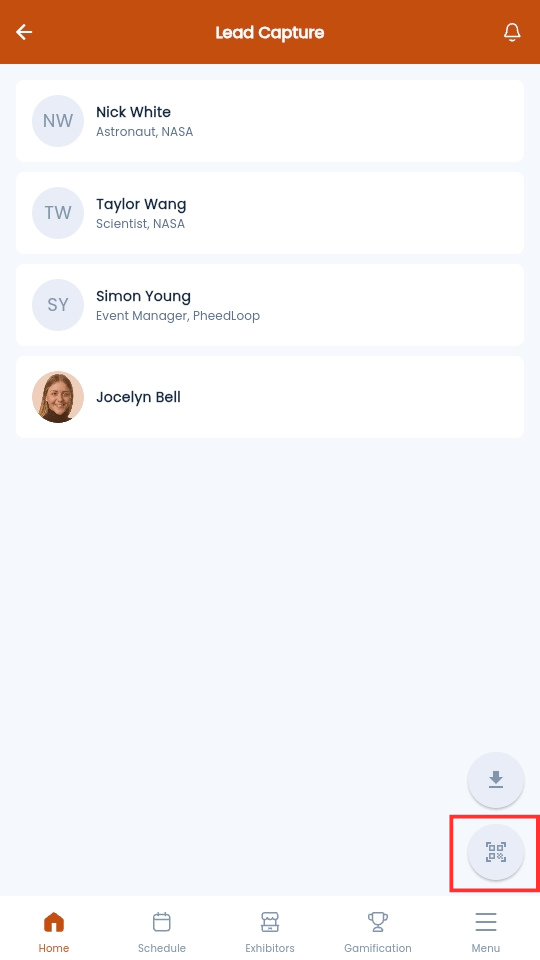
Select the QR code on the bottom right corner to scan an attendee's badge
-
Your camera will now open, allowing you to scan the attendee badge

-
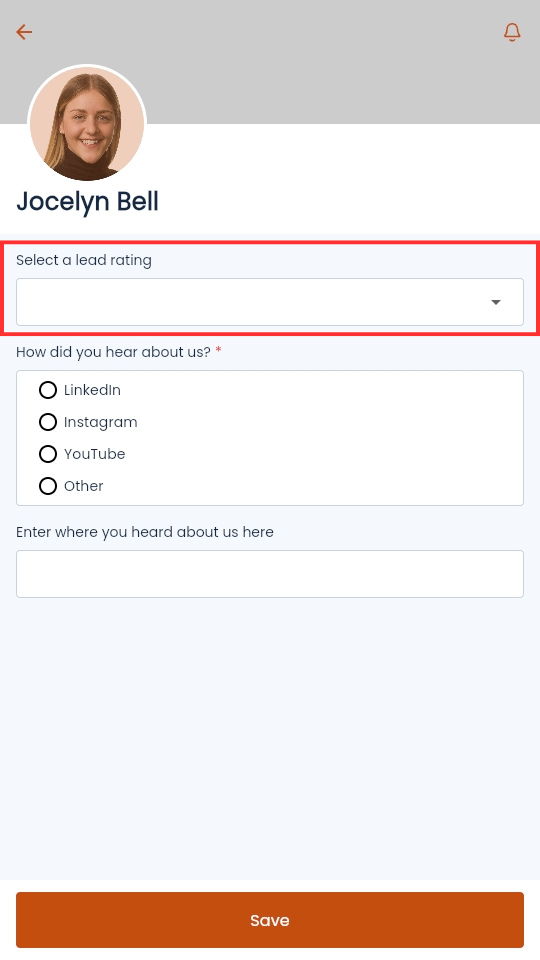
Under the Select a lead rating field, select URGENT, HOT, WARM, or COLD, based on how high of a priority the captured lead is
-
If you have attached an exhibitor form, the form will be available at the bottom of the page
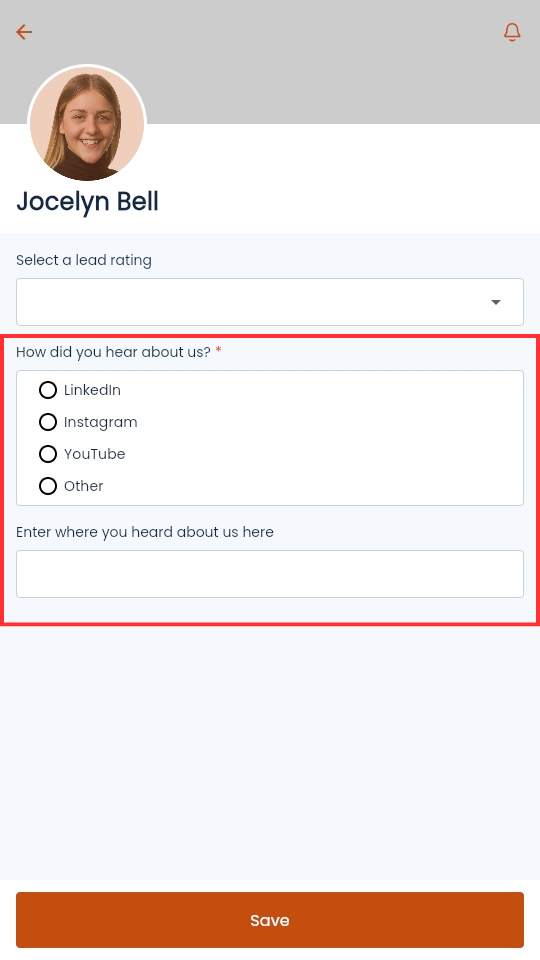
- Select Save
Quick Tip - You can select the download icon in Lead Capture to export all your leads.
