How to use PheedLoop Go as an Attendee
When an organization decides to incorporate PheedLoop Go! into their event, Attendees will have access to the app. Using PheedLoop Go! is necessary for many features including Gamification, Meeting Booking, Raffles and many more.
This article will walk you through accessing PheedLoop Go! and some commonly used pages during Events.
Step 1 - Downloading PheedLoop Go!
The first step is to download PheedLoop Go! on your device.
Once downloaded, you can proceed to the next step.
Step 2 - Logging Into PheedLoop Go! With A One Time Passcode
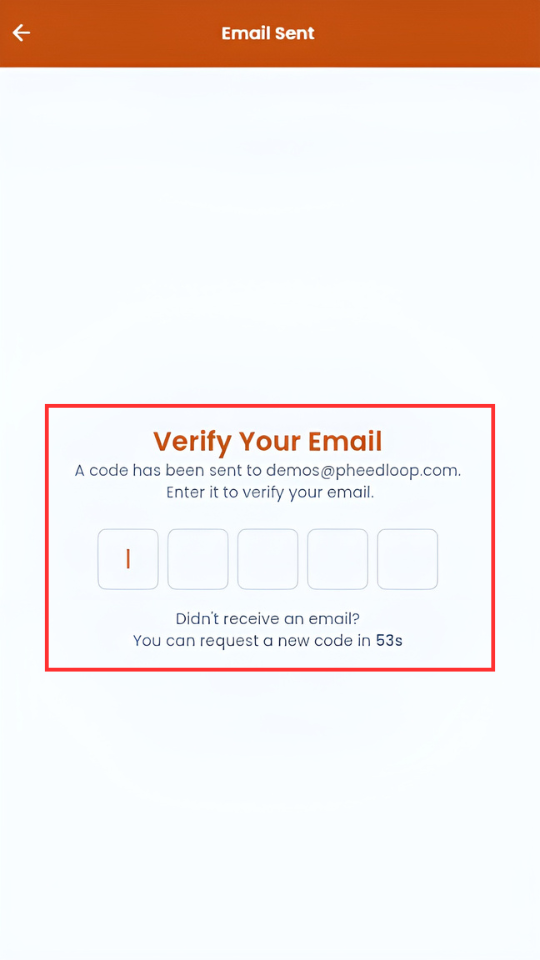
PheedLoop supports one-time password logins through email for PheedLoop Go! With this feature, attendees can simply send a code to their email and enter the corresponding code to login. Passcodes are only valid for 10 minutes before a new one needs to be sent.
Please note, this feature is only available to users who have created a PheedLoop account. It is not possible to use this feature to create new accounts.
- From your mobile device, open PheedLoop Go!
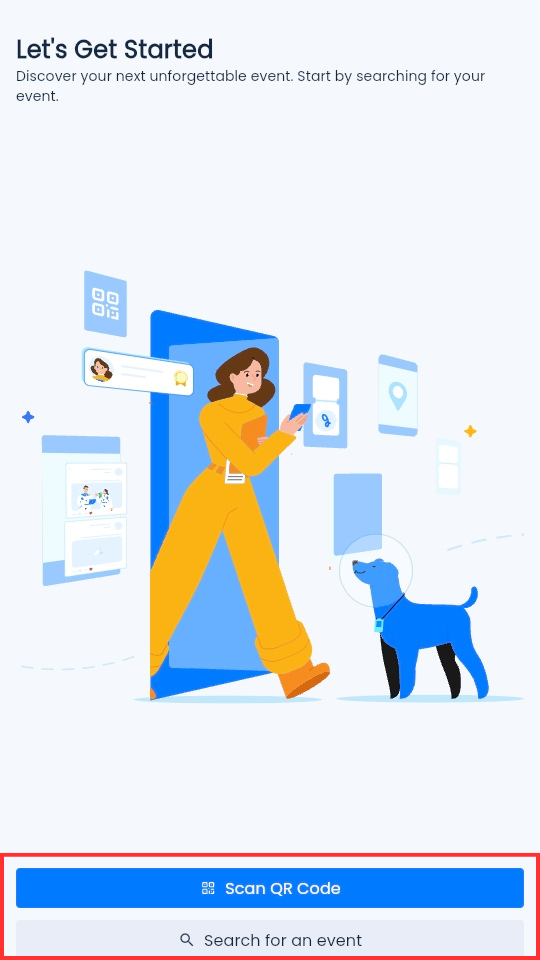
- Select Scan QR Code to scan the QR code for the event
-
Alternatively, select Search for an event and search for the event name.
-
Once you find the event, you'll be taken to the login screen to sign in with your account.
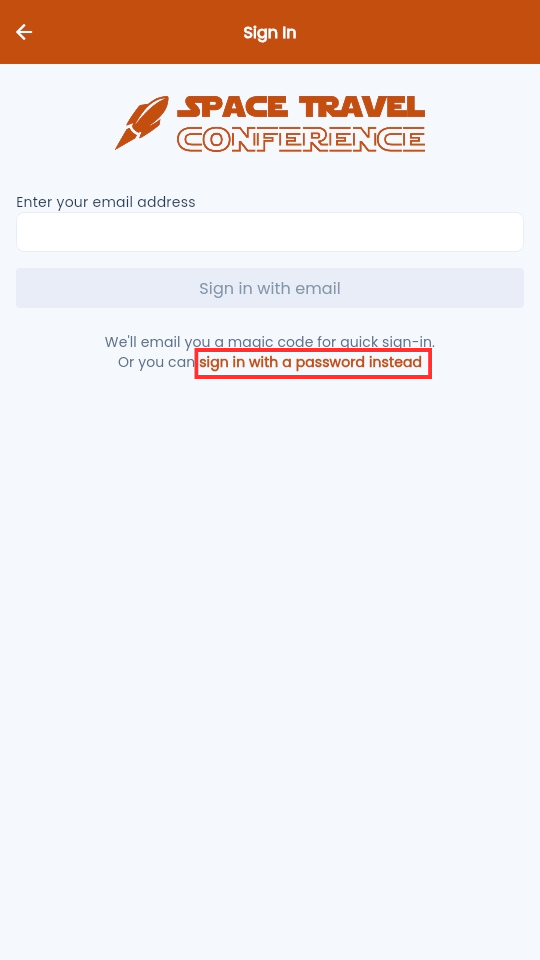
- Under the Email field, enter your email address
- Select Sign In with Email
-
If you would like to login with the password instead, select sign in with a password instead
-
- Open your email and copy the verification code sent
-
Copy and paste the code into PheedLoop Go!
If successful, you will be taken to the Event Selection page, where you can open the event you have registered for. We suggest checking your email for your account to ensure you have logged in with the correct email address. If you have logged in but cannot see your event, please reach out to your Event Organizer to confirm your email address has been added as an attendee.
I have a PheedLoop account but the app cannot find my email, what do I do?

If you are experiencing the we could not find an account with that email address error message and you are certain you have created a PheedLoop account, reach out to the event administrators for support. The most common explanation is that the email address entered during registration is different from the one you are trying to login with or spelt incorrectly. Event administrators change the email for your registration, and once corrected, you will be able to login through one time password.
Step 2A - Logging into PheedLoop Go! with a password
While PheedLoop Go! supports one time password by default, attendees can still login with their password if preferred.
- From your mobile device, open PheedLoop Go!
-
On the login page select sign in with a password instead
- Under the Email field, enter your email address
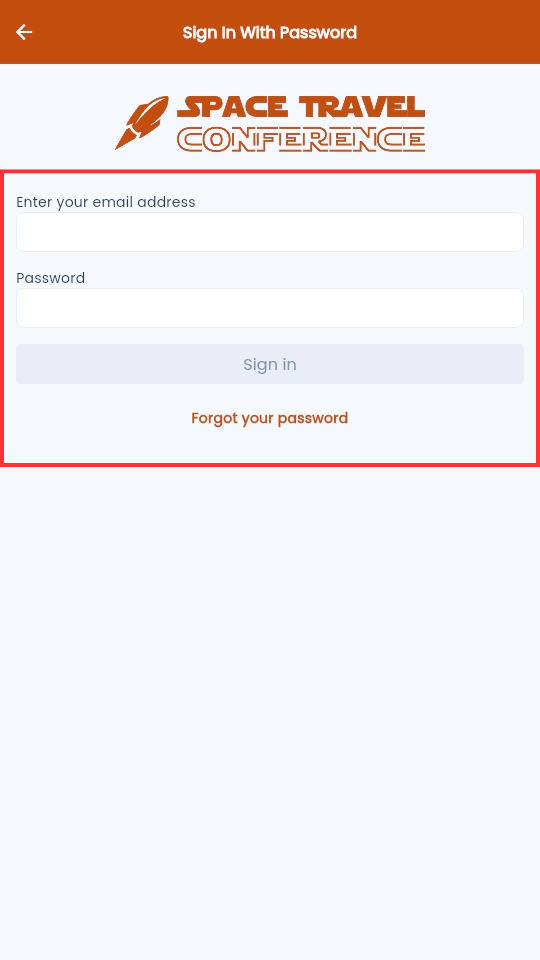
- Under the Password field, enter your password
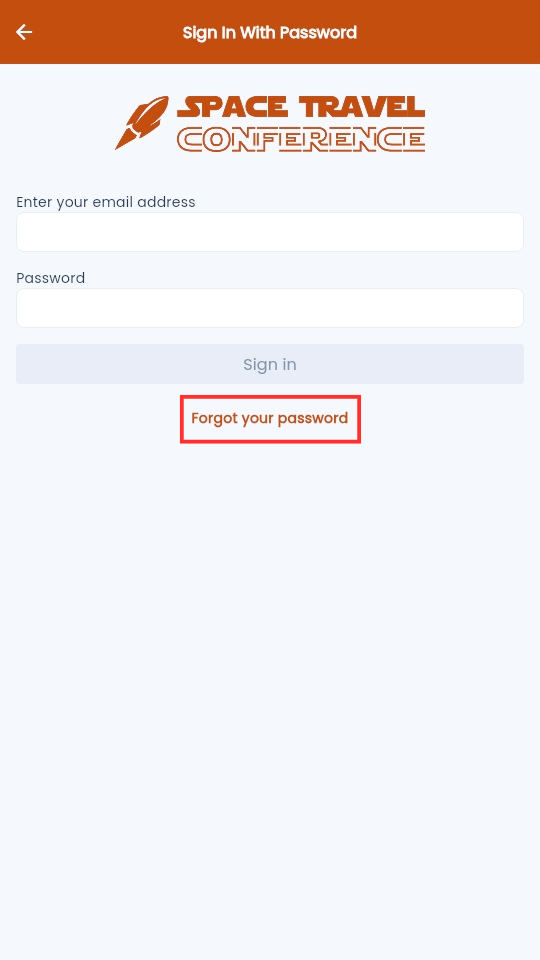
- Select Forgot your password if you need to reset your password
-
Select Login
Resetting Attendee Passwords in PheedLoop Go!
If you cannot login, ensure the email address and password you have entered are correct. If you are certain you have entered the correct email address, then reset your password:
-
From the login page, select the Forgot Password button
- Enter your email address
- Select Submit
An email will now be sent, allowing you to reset your password. If you do not receive an email, contact the Event Administrator to confirm that your email address has been added to their Event.
Step 3 - Understanding Event App Pages
Once you have logged into PheedLoop Go! and entered the Event page, you will now be at the starting point for your event experience. All the features mentioned at the beginning of this article will be accessible here, either from the home page or the side menu.
The Home page will contain widgets giving you an overview of features the event is using. Select View All to take you to the corresponding page.

Each page can be accessed from opening the Hamburger menu on the bottom right corner of your screen.

Commonly used pages from Attendees include:
Schedule
The Schedule page will show all publicly available sessions for the Event. Attendees can register for sessions and check themselves in if this has been set up by Event Administrators. If Event Administrators have disabled this, then the session page will not have these features.

Attendees
The Attendees page will display all Attendees attending the event. If an Attendee has Allow my profile to be publicly visible toggled off then their profile will not be visible in this page.

Speakers
The Speakers page will display all Speakers for your event, including the sessions they will be speaking at. Event Administrators can hide Speakers and prevent them from appearing in the Event App if needed.

Exhibitors
The Exhibitors page will display all Exhibitors for your event. The Event Administrator can choose to hide select exhibitors if necessary.

Step 4 - Understanding Settings
There are multiple settings Attendees can configure for their profiles, including the option to opt out of certain features.
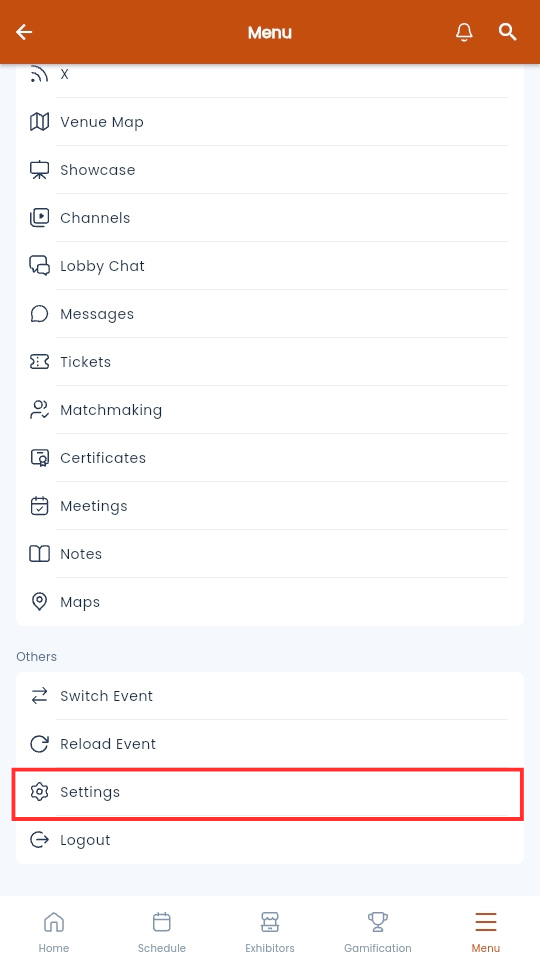
Each page can be accessed from opening the Hamburger menu on the top left corner of your screen. Either click on your profile icon or scroll down the hamburger menu and select Settings.
- From the Event Home Page, select the Hamburger menu
- Select your profile to access your settings
-
Alternatively, scroll down to the bottom of the menu and select Settings
-
You will now be taken to the settings page where you can edit the settings for your account.
Profile
Selecting your profile at the top of the Menu or in the Settings page will allow you to edit your profile information.

| Field/Setting | Description |
|---|---|
| Change Profile Photo | Select the profile icon to upload your own custom icon. Select Snap Photo to use your camera as your profile picture. Select Library to upload a photo from your gallery as your profile picture. Select Remove to restore the profile picture to the default photo. |
| First Name | The first name of your profile can be edited under this field. |
| Last Name | The last name of your profile can be edited under this field. |
| Organization | Enter the name of your organization under this field. |
| Title | Enter your title under this field if necessary. |
| Designation | Enter your designation under this field if necessary. |
| Location | Enter your location under this field if necessary. |
| City | Enter your city under this field if necessary. |
| Bio | Enter an introduction about yourself under this field if necessary. |
| LinkedIn URL | Add an URL for your LinkedIn profile under this field. If added, a LinkedIn icon will be visible under your attendee profile. |
| X URL (Formerly Twitter) | Add an URL for your Twitter profile under this field. If added, a Twitter icon will be visible under your attendee profile. |
| Website URL | Add an URL for your personal website under this field. If added, a mouse icon will be visible under your attendee profile. |
| Public Profile | Toggle this setting on to mark your profile as visible. If toggled off, your profile will be hidden in the Attendees page. Please note, your profile will need to be marked as visible in order to use certain features such as messaging and meeting booking. |
| Attendee Messaging | Toggle this setting on to allow attendees to message you. |
| Message Notifications | Toggle this setting on to allow notifications when an attendee messages you. |
| Announcement Notifications | Toggle this setting off to stop notifications from appearing in your device. |
Theme
Selecting Theme will change the color scheme of the app. You can choose between light and dark.

Languages
The Languages setting controls what language is displayed in the Event App. Available language options are determined by the Event Administrators.
